
Customize icons
Table of Contents
You can customize icons in the ThoughtSpot interface by using an SVG sprite file loaded from a web server or CDN.
Before you begin🔗
Identify the icons that you want to override🔗
-
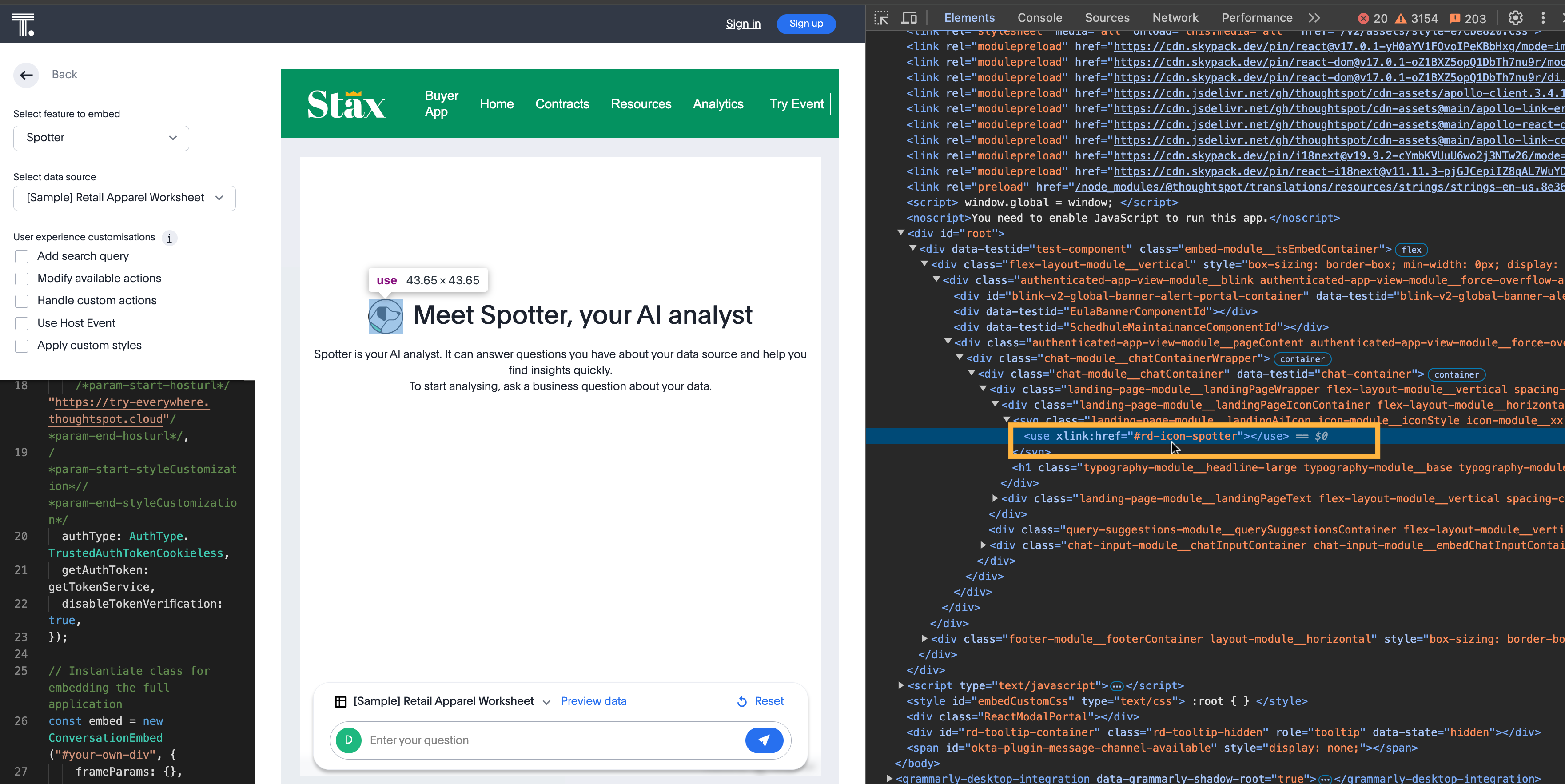
On your ThoughtSpot instance, right-click on the icon and select Inspect.
-
Inspect the
<svg>element. -
The
<svg>element should include a<use>element, for example:<use xlink:href="#rd-icon-cog"></use> -
Copy the icon ID, which is the portion after the
#within thexlink:href=property.
Update allowlists on the Security Settings page🔗
For ease of testing, the domain https://cdn.jsdelivr.net/ is already allowlisted on the ThoughtSpot public Playground and trial sites.
If you want to use the examples on your own instance, add the https://cdn.jsdelivr.net/ domain to the following allowlists on the Develop > Security Settings page:
You can add any other domains where you host the SVG override files to the same allowlists.
Test an override file🔗
The Developer Embed Playground lets you try any override from an allowlisted origin.
Create an icon override🔗
The basic structure of an icon override file is shown in the following snippet:
<svg xmlns="http://www.w3.org/2000/svg" xmlns:xlink="http://www.w3.org/1999/xlink" style="width:0;height:0;visibility:hidden;">
   <defs/>
   <symbol id="rd-icon-name" viewBox="0 0 18 18">
      <path />
   </symbol>
</svg>
The id= property of the <symbol> tag tells ThoughtSpot which icon to substitute with the provided SVG. This id= should match the icon ID you identified at the start.
The <path /> portion within the <symbol> tags is the definition of the actual drawing.
You are defining a small icon, so it should fit within a square boundary and have a single solid color.
There are many simple SVG icon examples available online, for example, SVG Viewer.
You only need to copy the <path> tags from your source SVG into the <symbol></symbol> tags.
You can declare multiple <symbol> tags within one SVG file if you are substituting a number of icons.
viewBox property🔗
The viewBox property is in the order min-x, min-y, width, and height.
The first two values should be 0 0, and the last two should match the source SVG width and height values for your paths.
The width and height values can appear directly on the <svg> element, in its viewBox, or in another element above <path>. Use those source values in the <symbol> element’s viewBox in your override file.
fill property🔗
You can add the fill property to the <symbol> tag to define a different fill color than the default:
<symbol id="rd-icon-spotter" viewBox="0 0 222 225" fill="red">Apply overrides🔗
To override an icon:
-
Ensure that you have the ID of the icon you want to replace.
-
To replace the icon with an SVG, open the icon in a web browser, click Inspect, and then copy the SVG code.
-
Create an icon sprite file with the SVG code.
-
In the
<symbol>element, specify the ID of the icon you want to replace. For example,rd-icon-spotter. -
Save the icon sprite file on a web server.
-
To override icons on the ThoughtSpot page, specify the icon sprite URL in the
iconSpriteUrlproperty of thecustomizationsobject in the Visual Embed SDK. -
Load the application page and check the icon.
Icon override examples🔗
The most common icon ID to override is rd-icon-spotter (the Spotter image), but you can identify any SVG icon and provide an override in the file.
Spotter icon🔗
The following example shows the SVG elements of the icon sprite used to override the Spotter icon (rd-icon-spotter):
<svg xmlns="http://www.w3.org/2000/svg" xmlns:xlink="http://www.w3.org/1999/xlink" style="width:0;height:0;visibility:hidden;">
   <defs/>
   <symbol id="rd-icon-spotter" viewBox="0 0 48 48" fill="black">
      <path xmlns="http://www.w3.org/2000/svg" d="M45.6,18.7,41,14.9V7.5a1,1,0,0,0-.6-.9L30.5,2.1h-.4l-.6.2L24,5.9,18.5,2.2,17.9,2h-.4L7.6,6.6a1,1,0,0,0-.6.9v7.4L2.4,18.7a.8.8,0,0,0-.4.8v9H2a.8.8,0,0,0,.4.8L7,33.1v7.4a1,1,0,0,0,.6.9l9.9,4.5h.4l.6-.2L24,42.1l5.5,3.7.6.2h.4l9.9-4.5a1,1,0,0,0,.6-.9V33.1l4.6-3.8a.8.8,0,0,0,.4-.7V19.4h0A.8.8,0,0,0,45.6,18.7Zm-5.1,6.8H42v1.6l-3.5,2.8-.4.3-.4-.2a1.4,1.4,0,0,0-2,.7,1.5,1.5,0,0,0,.6,2l.7.3h0v5.4l-6.6,3.1-4.2-2.8-.7-.5V25.5H27a1.5,1.5,0,0,0,0-3H25.5V9.7l.7-.5,4.2-2.8L37,9.5v5.4h0l-.7.3a1.5,1.5,0,0,0-.6,2,1.4,1.4,0,0,0,1.3.9l.7-.2.4-.2.4.3L42,20.9v1.6H40.5a1.5,1.5,0,0,0,0,3ZM21,25.5h1.5V38.3l-.7.5-4.2,2.8L11,38.5V33.1h0l.7-.3a1.5,1.5,0,0,0,.6-2,1.4,1.4,0,0,0-2-.7l-.4.2-.4-.3L6,27.1V25.5H7.5a1.5,1.5,0,0,0,0-3H6V20.9l3.5-2.8.4-.3.4.2.7.2a1.4,1.4,0,0,0,1.3-.9,1.5,1.5,0,0,0-.6-2L11,15h0V9.5l6.6-3.1,4.2,2.8.7.5V22.5H21a1.5,1.5,0,0,0,0,3Z"/>
      <path xmlns="http://www.w3.org/2000/svg" d="M13.9,9.9a1.8,1.8,0,0,0,0,2.2l2.6,2.5v2.8l-4,4v5.2l4,4v2.8l-2.6,2.5a1.8,1.8,0,0,0,0,2.2,1.5,1.5,0,0,0,1.1.4,1.5,1.5,0,0,0,1.1-.4l3.4-3.5V29.4l-4-4V22.6l4-4V13.4L16.1,9.9A1.8,1.8,0,0,0,13.9,9.9Z"/>
      <path xmlns="http://www.w3.org/2000/svg" d="M31.5,14.6l2.6-2.5a1.8,1.8,0,0,0,0-2.2,1.8,1.8,0,0,0-2.2,0l-3.4,3.5v5.2l4,4v2.8l-4,4v5.2l3.4,3.5a1.7,1.7,0,0,0,2.2,0,1.8,1.8,0,0,0,0-2.2l-2.6-2.5V30.6l4-4V21.4l-4-4Z"/>
   </symbol>
</svg>
The following code snippet uses the alternate-spotter-icon.svg containing the overrides for the Spotter icon (rd-icon-spotter):
 init({
     //...
     customizations: {
         // Use the SVG sprite file containing icon overrides for the Spotter icon, "rd-icon-spotter".
         iconSpriteUrl: "https://cdn.jsdelivr.net/gh/thoughtspot/custom-css-demo/alternate-spotter-icon.svg" // Replace with the URL where your SVG sprite file is hosted
     }
 });
The following figures show the icons before and after the override.
Before 
| After 
|
Column chart icon🔗
The column chart icon appears in the chart/table toggle and in the chart selection panel on Answer pages. The icon ID is rd-icon-chart-column.
The following example shows the SVG for the icon override:
<svg xmlns="http://www.w3.org/2000/svg" xmlns:xlink="http://www.w3.org/1999/xlink" style="width:0;height:0;visibility:hidden;">
   <defs/>
   <symbol id="rd-icon-chart-column" viewBox="0 0 24 24" fill="black">
       <path d="m14.8492 1.70711c-.3905-.39053-1.0237-.39053-1.4142 0l-.7071.70711 2.8284 2.82842.7071-.7071c.3906-.39053.3906-1.02369 0-1.41422z"/>
       <path d="m14.8492 5.94975-2.8284-2.82843-8.89951 8.89948-.70711 3.5355 3.53554-.7071z"/>
   </symbol>
</svg>
The following example uses the rd-icon-chart-column.svg SVG sprite file containing the overrides for the column chart icon:
 init({
     //...
     customizations: {
        // Use the SVG sprite file containing icon overrides for the column chart icon, "rd-icon-chart-column".
        iconSpriteUrl: "https://cdn.jsdelivr.net/gh/thoughtspot/developer-docs/static/svgs/rd-icon-chart-column.svg" // Replace with the URL where your SVG sprite file is hosted
     }
 });
The following figures show the icons before and after the override.
Before 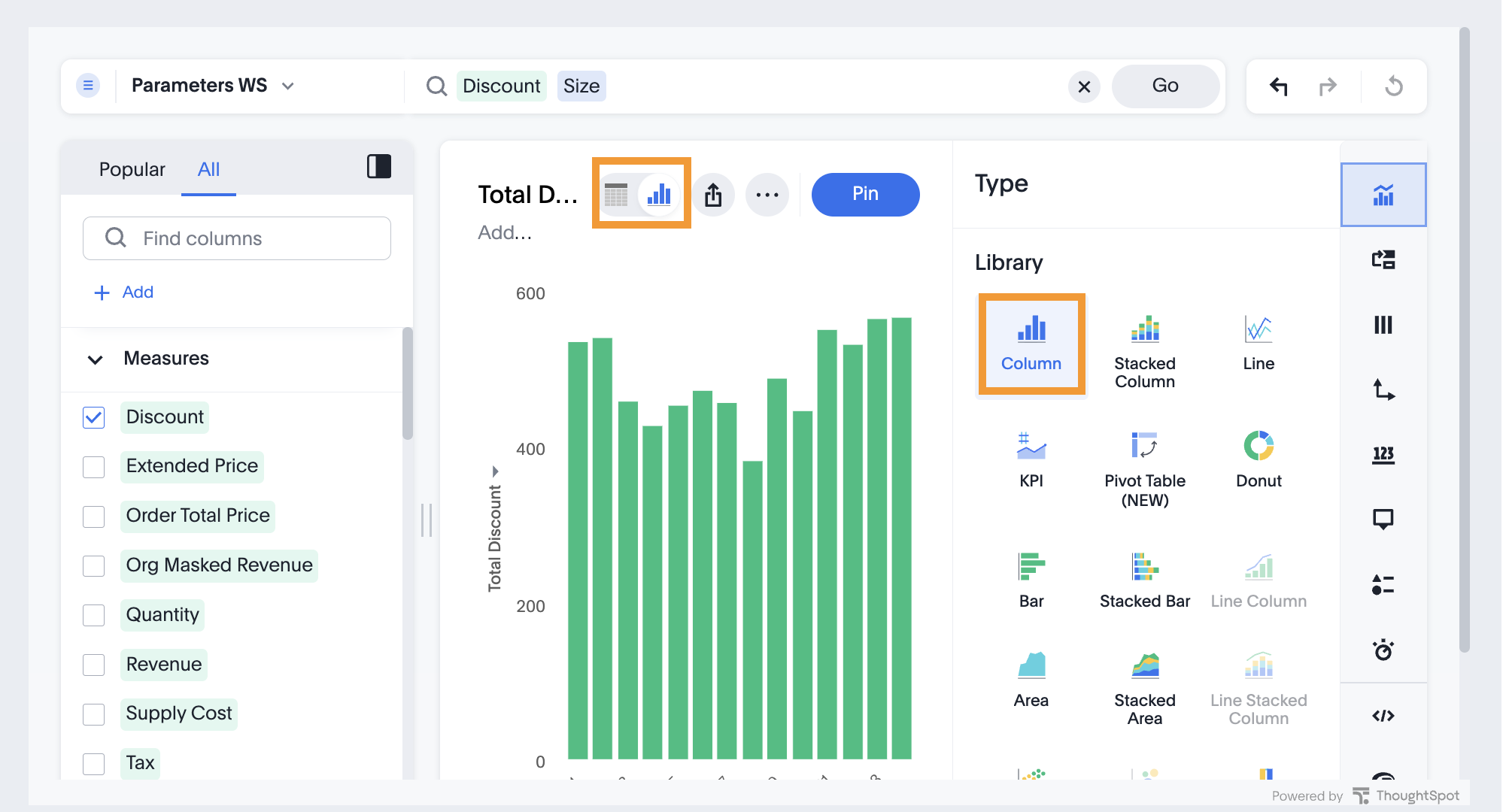
| After 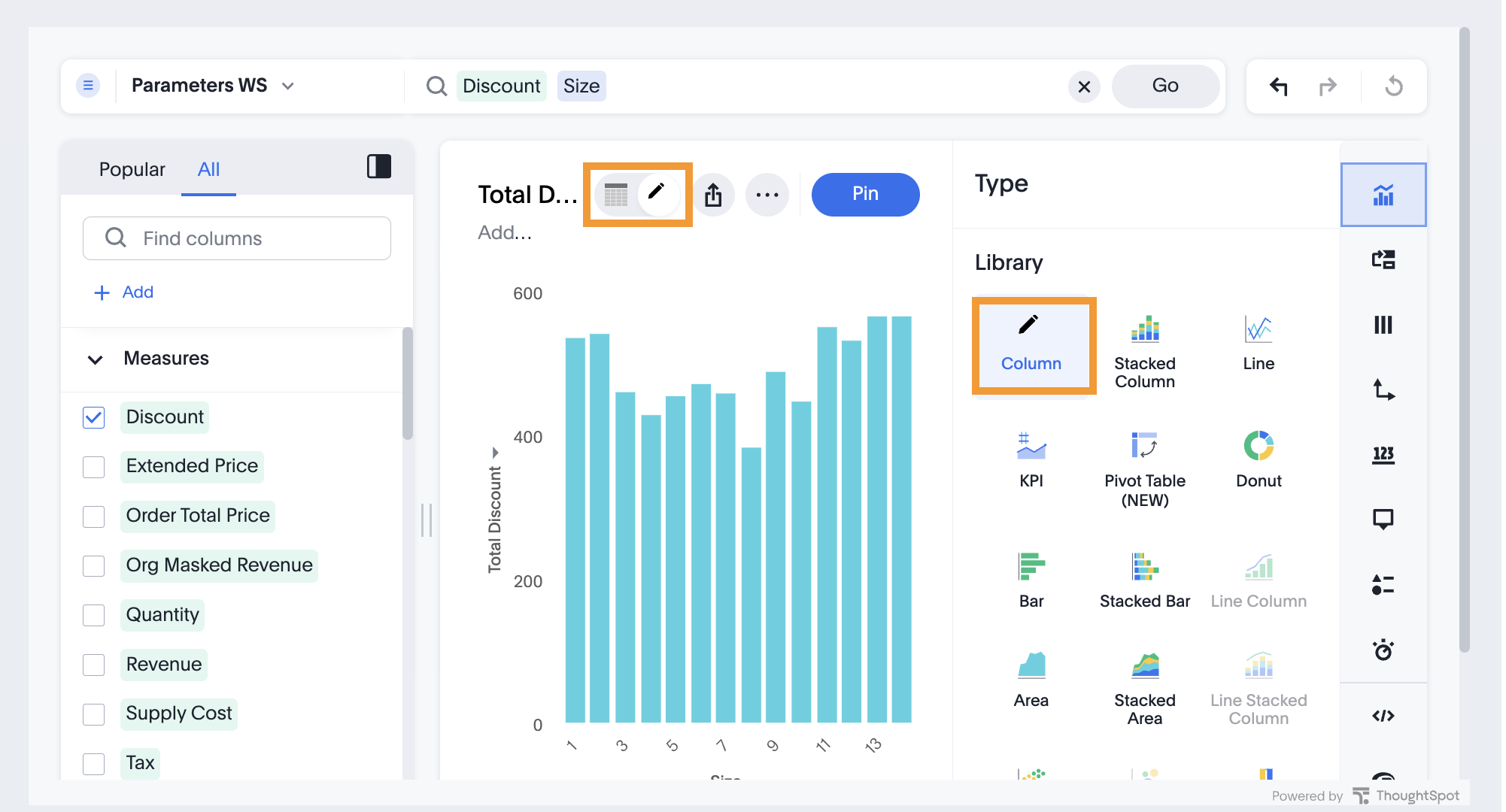
|
Chart settings icon🔗
The chart type icon appears in the settings panel of the Answer edit layout if the new chart settings UI experience is enabled on your instance. The icon ID is rd-icon-chart-type-settings.
The following example shows SVG for the icon override:
<svg xmlns="http://www.w3.org/2000/svg" xmlns:xlink="http://www.w3.org/1999/xlink" style="width:0;height:0;visibility:hidden;">
   <defs/>
   <symbol id="rd-icon-chart-type-settings" viewBox="0 0 24 24" fill="black">
        <path fill-rule="evenodd" clip-rule="evenodd" d="M7.39999 1H2.59999C1.71633 1 0.999989 1.71635 0.999989 2.6V15.4C0.999989 16.2837 1.71633 17 2.59999 17H15.4C16.2836 17 17 16.2837 17 15.4V10.6H15.4V15.2222H2.59999V2.6H7.39999V1ZM5.79999 10.6L7.39999 12.2L15.4 4.2V7.4H17V1H10.6V2.6H13.8L5.79999 10.6Z"/>
    </symbol>
</svg>
The following example uses the rd-icon-chart-type-settings.svg SVG sprite file containing the overrides for the chart type icon:
 init({
     //...
     customizations: {
        // Chart icon in the chart settings panel (rd-icon-chart-type-settings)
        iconSpriteUrl: "https://cdn.jsdelivr.net/gh/<your-org>/<your-repo>/rd-icon-chart-type-settings.svg" // Replace with the URL where your SVG sprite file is hosted
     }
 });
The following figures show the icons before and after the override.
Before 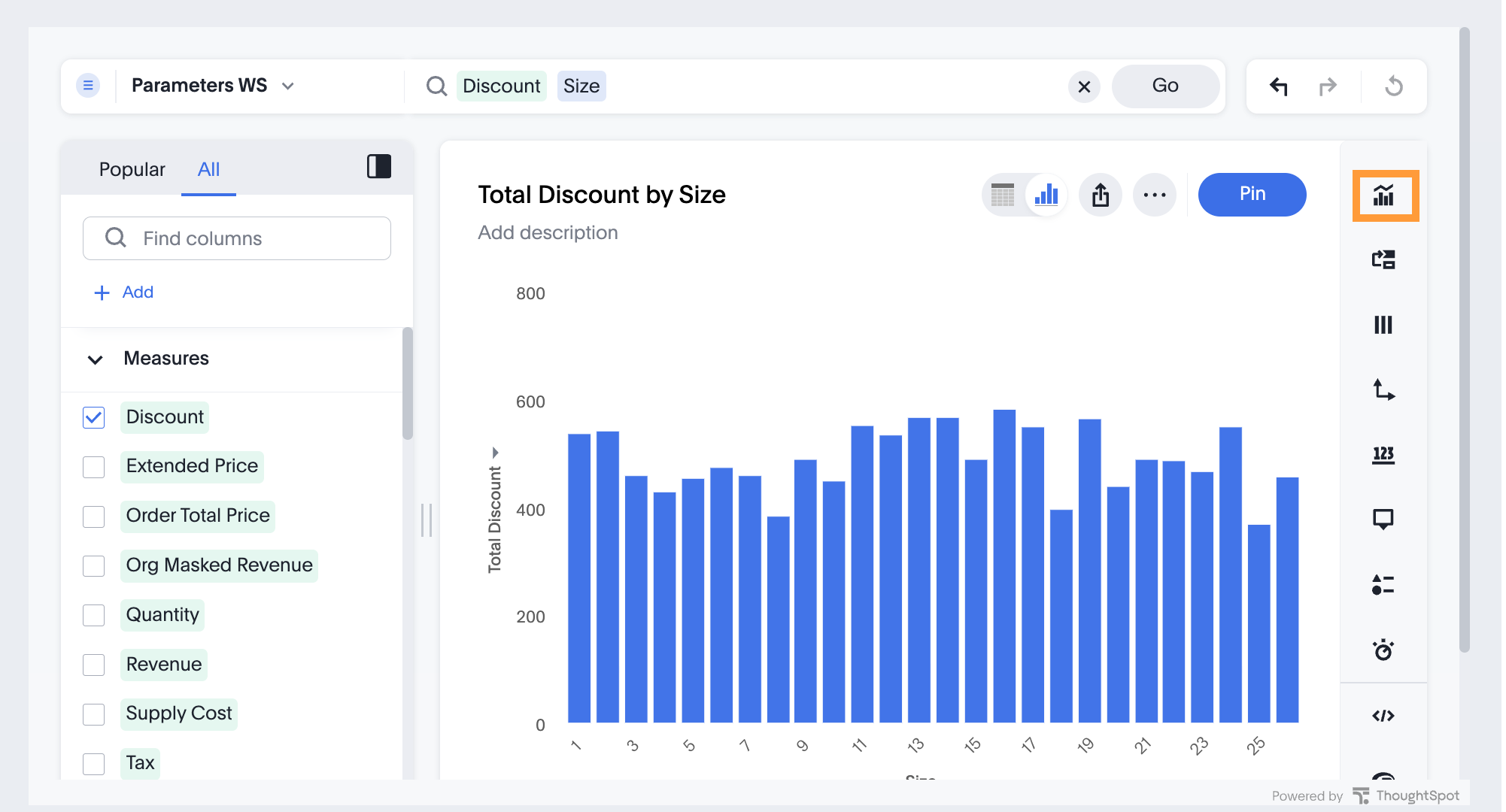
| After 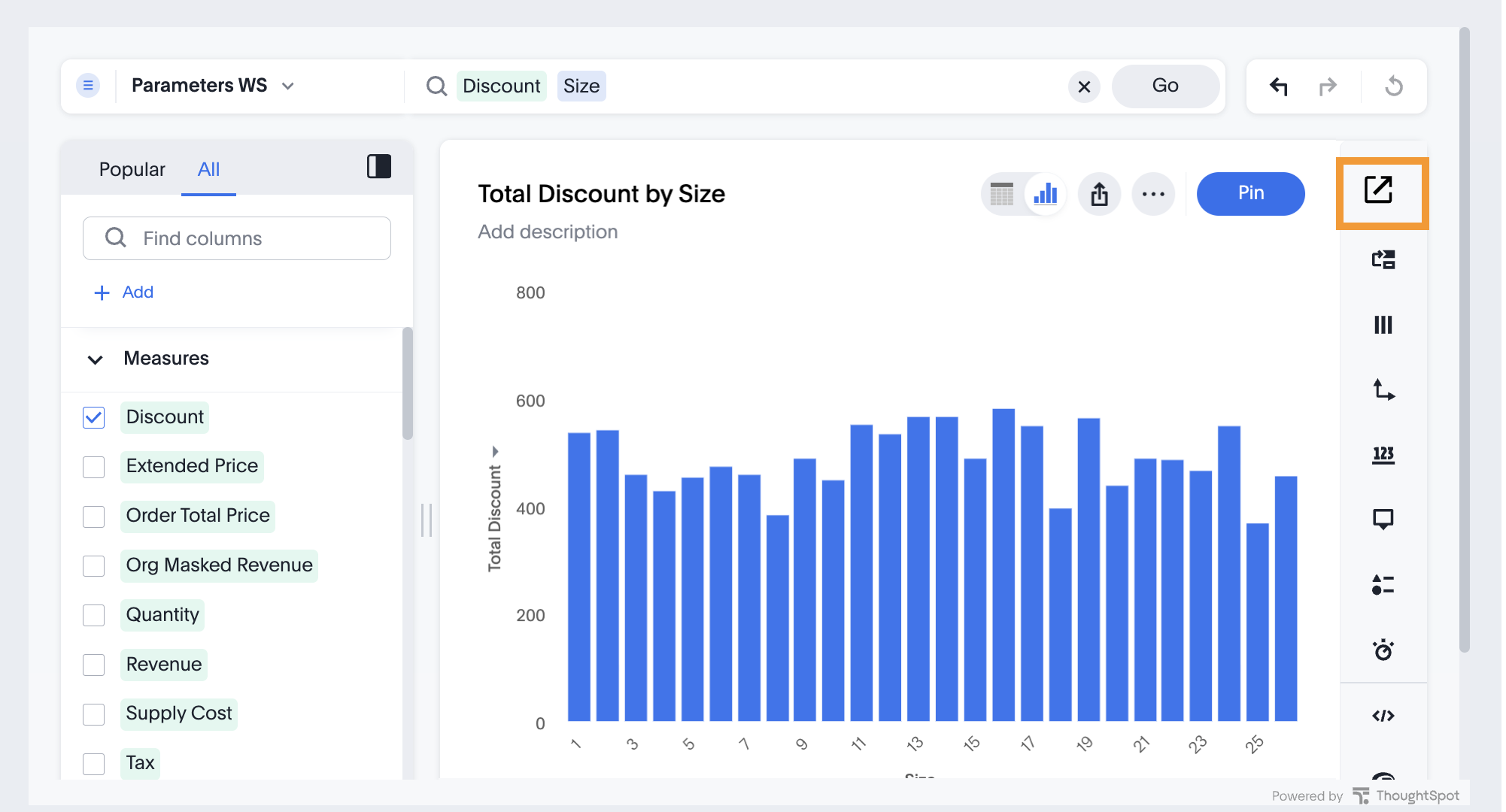
|
If the new chart settings UI experience is not enabled on your instance, use the rd-icon-chart ID in your SVG file.
<svg xmlns="http://www.w3.org/2000/svg" xmlns:xlink="http://www.w3.org/1999/xlink" style="width:0;height:0;visibility:hidden;">
   <defs/>
   <symbol id="rd-icon-chart" viewBox="0 0 18 18">
      <path d="m8.5 4.5c0 1.38071-1.11929 2.5-2.5 2.5s-2.5-1.11929-2.5-2.5 1.11929-2.5 2.5-2.5 2.5 1.11929 2.5 2.5z"/>
      <path d="m15.5 3.375h-2v2.625h-2.5v2h2.5v2.375h2v-2.375h2.5v-2h-2.5z"/>
      <path d="m1 12.875c0-2.7614 2.23858-5 5-5s5 2.2386 5 5v3.125h-10z"/>
   </symbol>
</svg>
The following example uses the icon-override1.svg SVG sprite file containing the overrides for the chart icon:
 init({
     //...
     customizations: {
        // Chart icon in the classic layout of the Answer edit panel (rd-icon-chart)
        iconSpriteUrl: "https://cdn.jsdelivr.net/gh/thoughtspot/custom-css-demo/icon-override1.svg" // Replace with the URL where your SVG sprite file is hosted
     }
 });
The following figures show the icons before and after the override.
Before 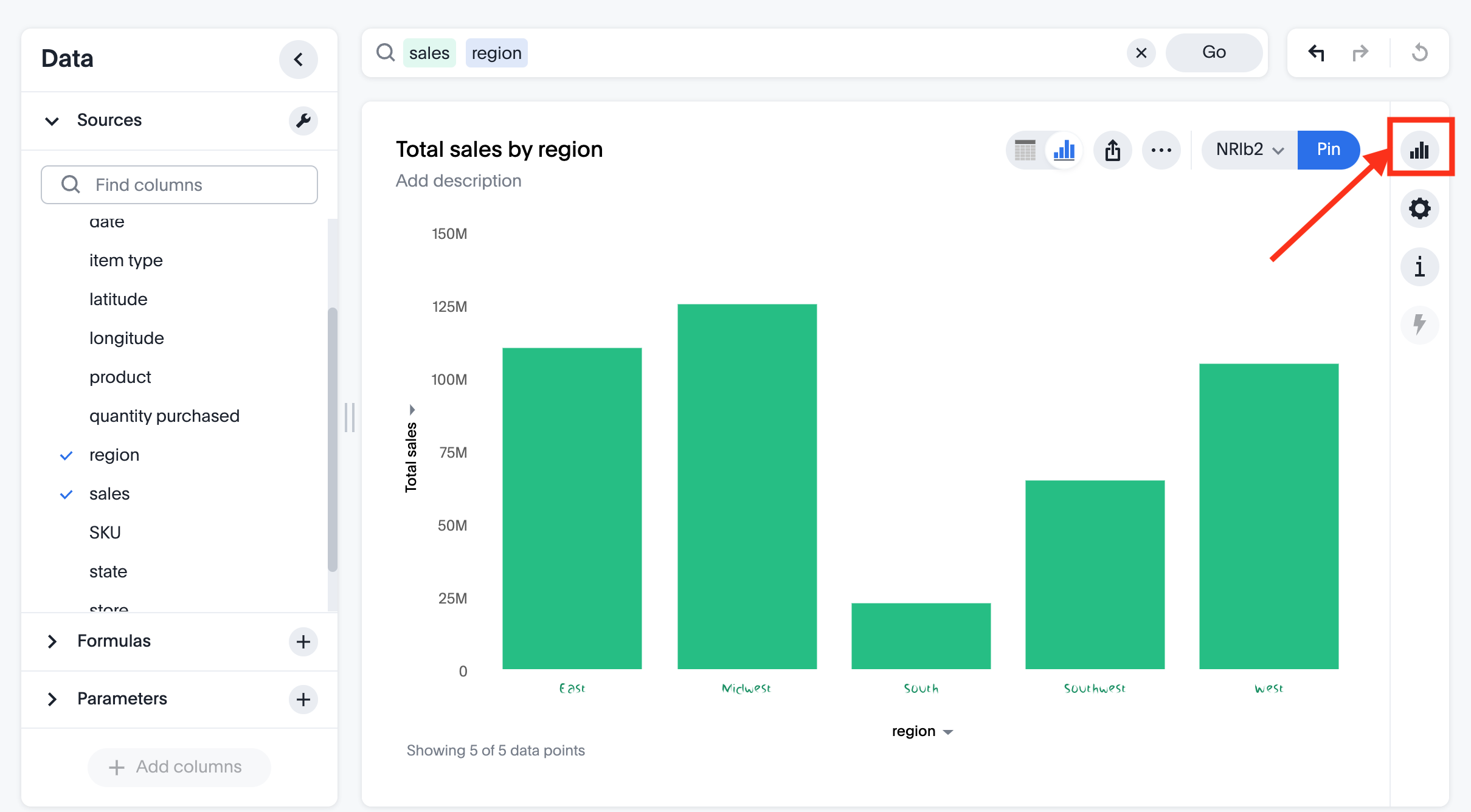
| After 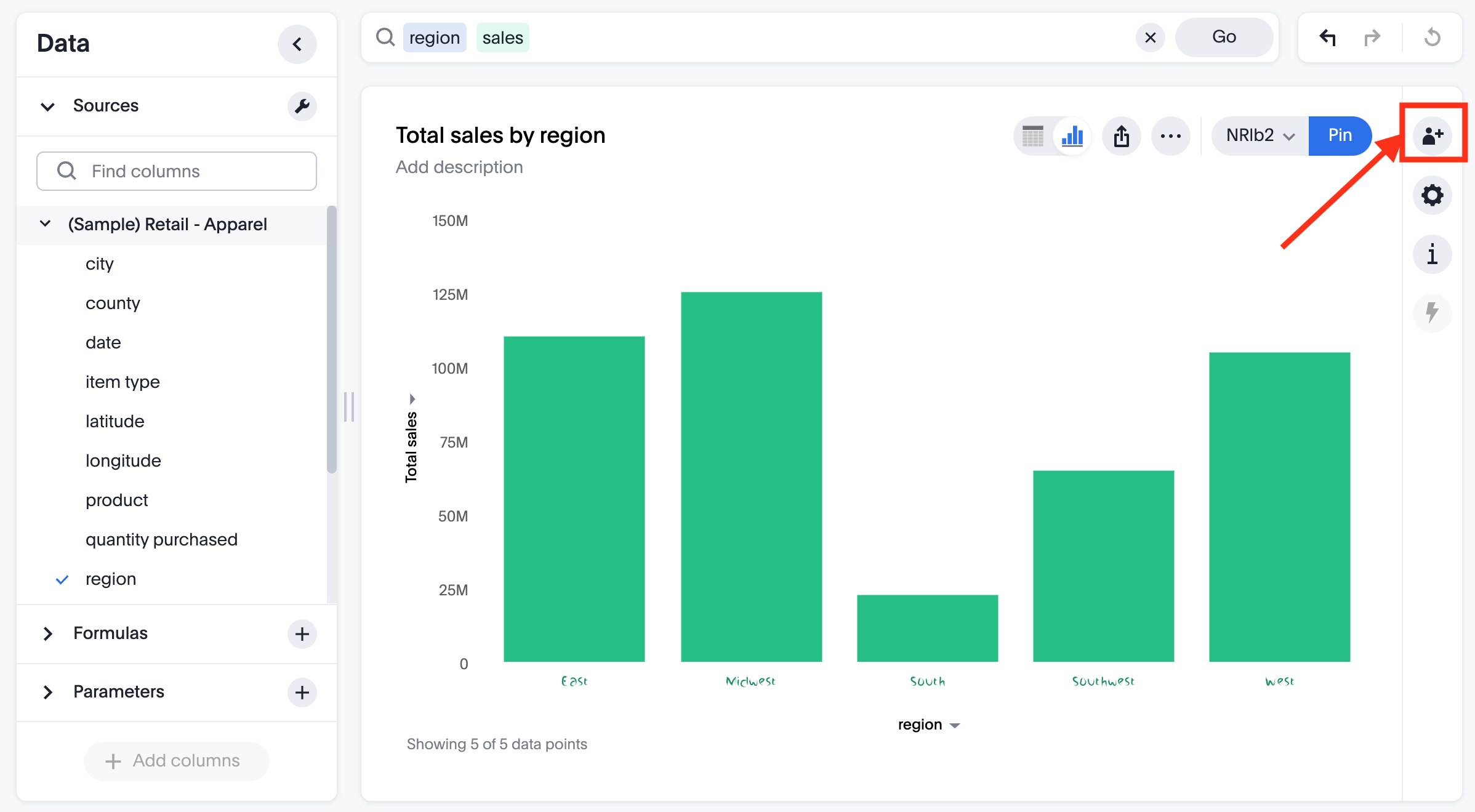
|
Multiple icon overrides using an SVG sprite file🔗
To override multiple icons at once, you can use the following format:
<svg xmlns="http://www.w3.org/2000/svg" xmlns:xlink="http://www.w3.org/1999/xlink" style="width:0;height:0;visibility:hidden;">
  <defs/>
  <symbol id="rd-icon-chart-type-settings" viewBox="0 0 24 24" fill="black">
    <path d="m8.5 4.5c0 1.38071-1.11929 2.5-2.5 2.5s-2.5-1.11929-2.5-2.5 1.11929-2.5 2.5-2.5 2.5 1.11929 2.5 2.5z"/>
    <path d="m15.5 3.375h-2v2.625h-2.5v2h2.5v2.375h2v-2.375h2.5v-2h-2.5z"/>
    <path d="m1 12.875c0-2.7614 2.23858-5 5-5s5 2.2386 5 5v3.125h-10z"/>
  </symbol>
  <symbol id="rd-icon-lightning" viewBox="0 0 16 16" fill="currentColor">
    <path d="M5.52.359A.5.5 0 0 1 6 0h4a.5.5 0 0 1 .474.658L8.694 6H12.5a.5.5 0 0 1 .395.807l-7 9a.5.5 0 0 1-.873-.454L6.823 9.5H3.5a.5.5 0 0 1-.48-.641zM6.374 1 4.168 8.5H7.5a.5.5 0 0 1 .478.647L6.78 13.04 11.478 7H8a.5.5 0 0 1-.474-.658L9.306 1z"/>
  </symbol>
</svg>
Try it out in the Playground🔗
The Visual Embed SDK Playground allows you to try out the icon customization framework.
To view the code for customization:
-
In the Playground, select the embed type. For example, select Search and specify the data source.
-
Select the Apply custom styles checkbox in the Playground.
Thecustomizationscode appears in the code panel. -
To override the chart icon on the Answer page, add the icon sprite URL in the
customizationssection and click Run. -
To view the result, execute search tokens to create an Answer.
-
Check the chart icon in the Answer layout.